Tuesday, June 12, 2012

Cumulative Flow Chart: aka A ScrumMaster's Dirty Little Secret!

On most of my teams we are really working on Minimizing Work In Progress and getting things across the finish line one at a time. So I set up this to really give them an idea of how they were doing at this goal. This is the Cumulative Flow Chart, another awesome Greenhopper Gadget. It gives me a great feel of our pacing by tracking the tickets in the sprint by status (based on the columns you have setup in the Task/Rapid Board). If we are knocking out Stories one at a time, this should have a nice up and to the right flow.


There are two things that I want to point out. See the orange and purple swaths? These are the “In Dev” and “In QA” flows. As long as these stay relatively thin, we are doing a good job of minimizing WIP.
The second thing that I absolutely love about this chart (and that makes my P.O.s and Devs think I’m super sneaky)? It takes a snapshot each day. I knows the number of tickets in or out. See how the top edge climbs as the sprint goes on. This means tickets have been pulled in.

This morning during Scrum, I pointed out that in less than a week we had pulled in a ton of tickets, and I was quickly hit with, "Most of those are Translation Tasks." Well the team doesn't work on Translation Tasks, those are mostly for Product to Track so we can plan launch dates. So, why were they cluttering up the Task Board and skewing the Cumulative Flow Chart's data? Time to fix this!

So I set out to find the answers. I found out from the GreenHopper Confluence page that I could configure which Context I wanted to pull from. Genius!

So I went into the Planning Board to set up a new context. (You can do this in any of the default Agile Boards: Planning, Task, Chart, and Released.) To do this (a) click the arrow to the right of whichever context you are currently set to (probably either "Default" or "On The Fly") and (b) click "New".


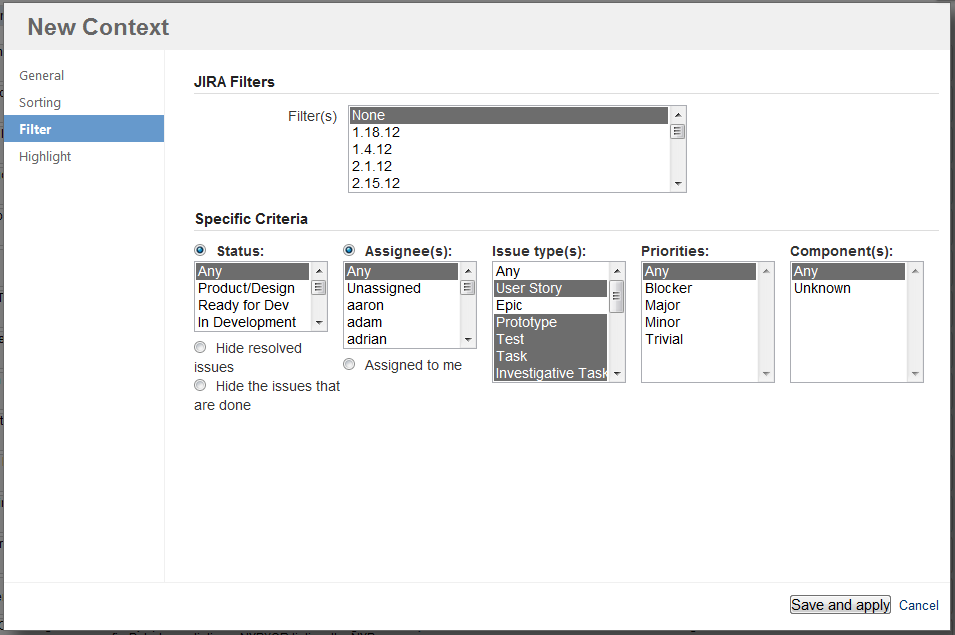
A dialog box will come up so you can configure your new Context. First Name it, then click over to the Filter tab and choose which issue types to include/exclude. I decided to exclude Epics, Content/Marketing Tasks, Design Tasks, and Translation Tasks. Since most of these are custom to us, yours will probably be different.


Then pop back over to the dashboard that you have the Cumulative Flow Chart Gadget on, and click "Edit" to configure. Set the "Context".


Now I have a much cleaner view to see if tickets were added, and can address them accordingly!

After

Before


Friday, June 1, 2012

How to Create a Dashboard

JIRA comes loaded with a standard dashboard, but since we all have different things that we need to get out of JIRA, it may be time to create one of your own to fit those needs.  I will follow this up later with a post about what makes a good dashboard, but for now this is a simple step-by-step on just creating one.

1) Click the down arrow next to "Dashboards" and select "Manage Dashboards"


2) Click "Create New Dashboard" in the top right corner of the dashboard management page.


3) Create New Dashboard Screen
  • Name and Describe your new dashboard. 
  • You can also choose here to start from a blank dashboard or you can choose to start from one you already have in your arsenal. This is super useful if you are creating say, team dashboards for multiple teams or tracking multiple projects.
  • Choose who you want to share it with. Is this going to be for your team? just you? everyone?
  • Then (and this one is an obvious step) click "Add"


4) Configure your new dashboard by adding gadgets. JIRA has a ton of great gadgets. Play around with them until you find something you love.


Thursday, May 31, 2012

JQL for Atlassian Summit 2012 Slides

Doing a simple search in JIRA for issues can work great for you, but there are some very powerful queries that you can write if you swap over to Advanced. You can also then share that JQL with your colleagues. Here I am sharing the JQL for all of the filters shown in my Summit 2012 Presentation, as well as a couple of extras that I wanted to share. I will continue to add more after the Summit.

Anything Assigned to Me Personally : Seems like overkill, but sometimes the plain old “Assigned to Me” got confused, and I lost some tickets. 
    • assignee = currentUser() AND status != Closed ORDER BY Rank ASC
Impediments

    • project in (SEM, MOBILE, BRO, CTS, USE, PR, "Global Sites") AND resolution = Unresolved AND Flagged = Impediment

Impediments <by Team>

    • project = <projectName> AND resolution = Unresolved AND Flagged = Impediment

Blockers
    • issuetype = Defect AND priority = Blocker AND resolution = Unresolved
Defects : <by team>
    • project = <projectName> AND issuetype = Defect
Current Sprint : <by team>
    • project = <projectName> AND issuetype in (Defect, "User Story ", Epic, Bug, "User Story") AND fixVersion in unreleasedVersions()
Defects
    • issuetype = Defect ORDER BY updated DESC, created DESC, key DESC
Open Defects : <By team>
    • project = SEM AND issuetype = Defect AND resolution = Unresolved ORDER BY priority DESC, cf[10001] ASC, key DESC
Defects In Progress
    • issuetype = Defect AND status in ("In Progress", "In Development", "In Testing", "Ready for Signoff", "Ready for Integration", Integrated)
Recently Resolved Defects
    • issuetype = Defect AND resolved >= -7d
Work In Progress
    • project in (SEM, MOBILE, BRO, CTS, "INT", "Usability Team", PR) AND issuetype in ("User Story ", Epic, "User Story") AND resolution = Unresolved AND fixVersion in unreleasedVersions()
Recently Resolved User Stories
    • project in (SEM, MOBILE, BRO, CTS, "INT", "Usability Team", PR) AND issuetype in ("User Story ", Epic, "User Story") AND resolved >= -7d
Assigned to someone out of sprint. This filter covers two really important issues. 1) working on things outside of the sprint. I try to remind our devs that if they are working on something that isn’t on the board, they aren’t giving their team full visibility into impediments to the sprint. For the most part this has stuck in their brains, but sometimes things slip in, or something is assigned to them by someone else, and they don’t even notice. That brings me to #2. If a ticket is assigned to someone chances are no one else will touch it. So I like to keep people aware of things left assigned to someone so we don’t lose issues to the black hole of bug hugging.
    • project in (SEM, MOBILE, BRO, CTS, DEF, "INT", "Usability Team", PR) AND assignee in membersOf("uShip Developers") AND resolution = Unresolved AND fixVersion = EMPTY ORDER BY assignee ASC, key DESC
Tickets in Progress but out of Sprint is another one along the same lines but with a bit of a twist. This generally means, either something was deprioritized and work that was in progress is now gone or that the ticket was just not updated to completed. Either way the tickets need to be updated to reflect the true status of the task.
    • project in (SEM, MOBILE, BRO, CTS, DEF, "INT", "Usability Team", PR) AND status in ("In Development", "In Testing", "Ready for Signoff", "Ready for Integration", Integrated) AND fixVersion = EMPTY ORDER BY assignee ASC, key DESC
Assignee Was! I’ll close it out with one of my new favorites. Assignee Was! And yes, that exclamation point is actually in the title of the filter. I got so excited when I found this little gem, that I had to let my excitement be known. I’m not sure there is a single person who likes logging hours, but in most companies they like to track their ROI, and hours is an important part of that equation. We all try to log our hours as we transition tickets, but some days are busy, then the week gets busy, and before you know it 3 weeks have gone by, and hours were not logged. Thank you JQL for allowing me to filter by “assignee was” and a time period. Now my team member who is sometimes lost in a sea of tickets for weeks can just pull up every issue that has been assigned to them at some point in the past few days, weeks or years if they are really insane. Checkout this post for more info.
    • assignee was currentUser() after startOfYear()

Friday, May 25, 2012

Flagging Impediments

JIRA with GreenHopper gives the ability to flag a ticket as an Impediment. Which allows for a great at a glance view of anything that is currently impeded from either the Task Board or Planning Board. But without digging in the ticket and looking at comments, we didn't have a quick way to view what the actual impediment was. So I fixed it...

I added a custom field to specify impediments and added it to the Edit Issues pages:


I also added it to the Cards on the Task Boards so it was easy to flag and explain:


Since the impediments are now specified, I could set up a filter to pull the tickets that are flagged as impediments. Using the "Filter Results" gadget, these are now displayed on each team's dashboard:


Wednesday, May 16, 2012

Delicious Easter Egg

Do you use column constraints in your task board? If you do, next time the capacity has been exceeded, open up the Column Constraints editor and scroll your mouse over the exceeded constraint row.  You will be rewarded with a foamy mug of beer!


UPDATE: It happens with a Capacity Shortfall as well!

Monday, May 14, 2012

Making the Burndowns Work!

JIRA has so many fun and amazing tools, but one in particular eluded me for some time: The Burndown! I was actually creating burndowns in Excel, because I just couldn’t make it work. I couldn't figure out why it would only track yesterday and today, but not the whole sprint. I was pulling my hair out, until the day that I added in a Start Date and End Date. Like magic, suddenly I had a Sprint Burndown.


The easiest way to enter this information is to add the version directly from the Planning Board.
Don't worry though if you already have an existing one, you can edit these dates from the Planning board as well. Just click on the word "None" next to "Start/End Date", and it will let you edit it.
Then, simply add a Start Date and End Date. Magic!